Acemagic Vista Mini V1 Notes
Russell Bateman
September 2025
|
In June 2025, I was tempted by and purchased an ACEMAGICIAN Vista V1 Mini PC
computer from Amazon for $149. It came with Windows 11 Pro installed which I
was able able to set up without obligating myself to create a Microsoft account
requiring log-in. Here are the details:
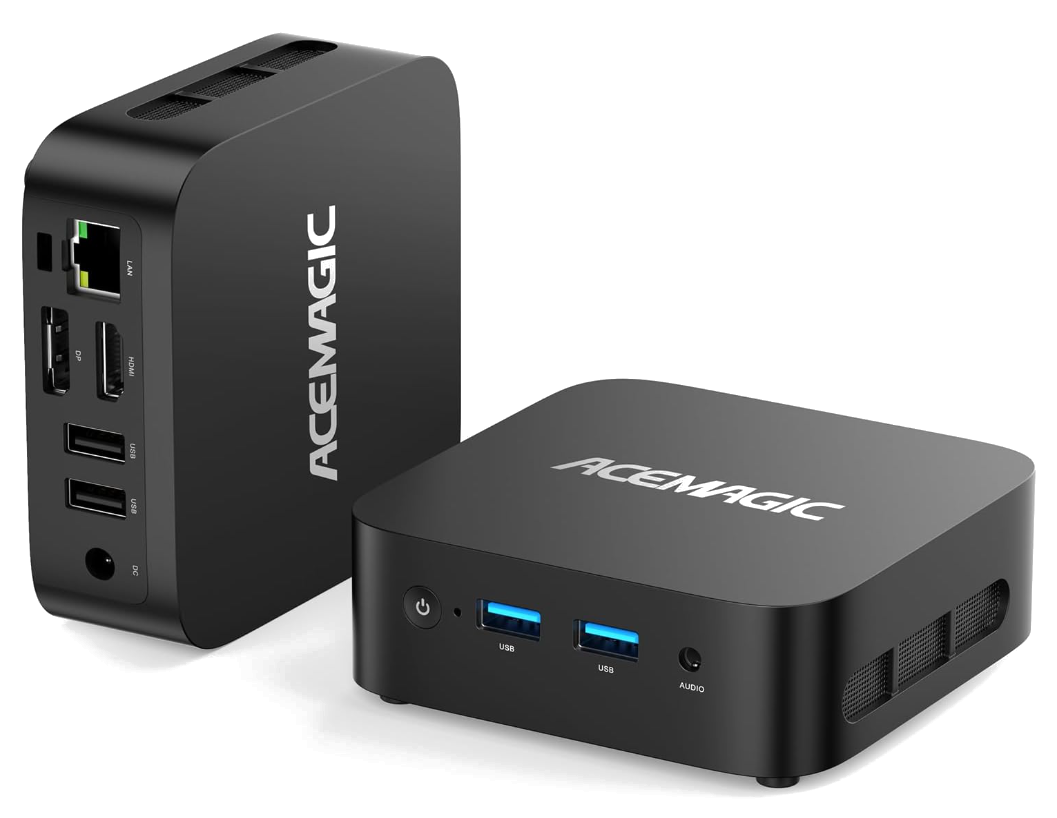
12th Generation Intel Alder Lake N95 (Beat N100, Up to 3.4GHz, 4 Cores)
16Gb DDR4 RAM
512Gb M.2 2280 SSD (Maximum 2Tg)
Dual WiFi 5
Bluetooth 4.2
Intel UHD Graphics
Axial Fan Internal Cooling

Front
Power button
2× 3.2
3.5mm Audio Jack

Rear
Gigabit Ethernet RJ-45
UHD 4K HDMI 2.0 (4K @ 60Hz)
Display Port 1.4 (4K @ 60Hz)
2× 2.0
Power connector
I purchased this because the price and I need a replacement for my HP 17"
touchscreen notebook running Windows 10 in order to run Turbotax software
(which I have never been able to port to Wine.
However, I would like to run a headless Ubuntu Server
Better yet, on another instance of this hardware. This would be so I can set up
a Jellyfin server for my house (n support for outside subscribers). I wonder if
it's possible to serve up the media from an external USB-mounted drive. I tried
to do that with my existing Plex Media server and it never really worked (the
mounted volume kept unmounting.
What I have learned...
When installing Debian Linux on an Acemagic Vista Mini V1, the primary
challenges involve accessing the BIOS for boot management and ensuring full
driver compatibility for components like the NVMe drive and Wi-Fi card. While
the system is based on standard x86 architecture and can run Linux, specific
hardware can cause problems during or after installation.
BIOS and booting challenges
- Difficulty entering BIOS: Unlike most computers, the Vista Mini V1
may not use standard keys like F8, F10, or Delete to enter the BIOS at startup.
Instead, users report having to use the Windows Advanced Recovery settings to
access the UEFI firmware options.
- Secure Boot management: Once you access the BIOS/UEFI settings, you
may need to disable Secure Boot to allow the Debian installer to boot
correctly.
Driver and hardware compatibility
- NVMe drive errors: Some users report that the Linux installer fails
when trying to write to the stock NVMe solid-state drive (SSD), which may be an
unpatched compatibility issue with certain Linux kernels.
Workaround: Some users have successfully fixed this by
swapping the internal NVMe drive for another model.
Wi-Fi and Bluetooth drivers: The Realtek RTL8821CE Wi-Fi card
included in some Vista Mini V1 models is known to have compatibility problems
with some Linux distributions.
- Potential fixes: Compatibility issues often require updating
to a newer kernel or manually installing the appropriate drivers after
installation. For the installation itself, you may need a wired ethernet
connection or a different, compatible USB Wi-Fi dongle.
Graphical issues with some kernels: On some distributions, older
kernels might lack proper graphics acceleration for the Intel Alder Lake-N
integrated GPU. This can lead to poor video playback and visual glitches.
- Solution: Using a modern Debian release with a newer kernel
(e.g., kernel 6.5 or later) is often necessary for full graphics support.
General installation and stability issues
- Random system freezing: Incompatibility with wireless or power
management drivers can cause the system to freeze randomly. This is an issue
even on relatively recent Linux distributions like Ubuntu 24.04, which is built
on a newer kernel.
- Lack of manufacturer support: While Acemagic claims Linux
compatibility, they do not provide Debian-specific drivers or troubleshooting.
If you encounter issues, you will need to rely on the wider Linux community and
kernel development for fixes.
Strategies for a smooth installation
- Start with a live USB: Before committing to a full installation,
create a live Debian USB drive to boot from. This will allow you to test
hardware components like the Wi-Fi and NVMe drive to see if they are detected
and working correctly.
- Use the latest Debian version: Use a Debian release with a newer
kernel to increase the chances of "out-of-the-box" hardware support,
particularly for the NVMe drive and integrated graphics.
- Prepare workarounds: Keep a wired ethernet connection available in
case the Wi-Fi does not work immediately. Research driver installation
procedures for Realtek wireless cards on Debian before you begin the install.
In case the no-Microsoft account doesn't hold forever...
See
Microsoft forces on-line accounts.
If ever I decide to install Linux on this box...
ACEMAGIC Vista Mini V1 Freezing Randomly on Ubuntu 24.04
From Acemagic: Our technical team has reviewed your issue and identified
several potential causes:
Root Cause Analysis
Driver Incompatibility: The Bluetooth and Realtek Wi‑Fi drivers may not
be fully compatible with the Linux kernel used in Ubuntu 24.04.
Power Management Issues: System freeze could be triggered by aggressive
power-saving modes.
ACPI Deadlock: Errors in Bluetooth and Wi‑Fi drivers might be triggering
ACPI events, which then cause the system to enter an unstable state and
eventually deadlock.
New Kernel Instability: Ubuntu 24.04 was released recently, and some
drivers may not yet be fully stable on newer 6.x kernel versions.
Recommended Steps
To troubleshoot and improve system stability, please try the following:
- Temporarily Disable Bluetooth. You can disable it via terminal:
sudo systemctl stop bluetooth, sudo systemctl disable bluetooth.
- Turn Off WiFi Power Management. Add the following to
/etc/NetworkManager/conf.d/default-wifi-powersave-on.conf:
[connection] wifi.powersave = 2
Then restart NetworkManager:
sudo systemctl restart NetworkManager
- Disable SAP (SIM Access Profile) Edit
/etc/bluetooth/main.conf, set:
EnableSap=false.
- Update Bluetooth & WiFi Drivers. Check for any available
firmware or driver updates for your Realtek chipset and Bluetooth adapter.
- Disable ACPI Sleep Features (For testing only). Try booting
with the kernel parameter: (Note: This may disable some power features;
only use it temporarily to verify stability. acpi=off)
- Try a Different Kernel Version. If the issue persists, consider
switching to a Long-Term Support (LTS) kernel like 5.15 or 6.5, which may
have better hardware compatibility:
sudo apt install linux-image-5.15.0-xx-generic
Mounting the Acemagic Vista Mini computer to the back of a monitor
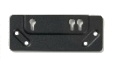
To mound the computer to the back of a monitor (to hide it, get it off the
desk, etc.), the monitor must offer standard VESA mounting holes. The bracket
comes with two tiny black screws for mounting which are inserted through one of
the two holes in a diagonal slot on either end of the bracket. This leaves two
slide-in holes standing proud of the back of the monitor for slipping over two
stand-off screws that also ship with the brack. These screws mount into two
hole on the bottom of the computer.
If the VESA mount is obscured in some way either because the mounting point is
already in use or the monitor stand itself is using them, this will not work.